Google Classroom – Latest Version, APK Download & Complete Guide (2026)
Sep 4,2026
26.34 MB
3.66.975276131
Android 8.1 and up
100M+

Description
Google Classroom is a digital learning platform that helps teachers and students manage classes, assignments, study materials, announcements, and communication in one place. The Android app makes it easier to access schoolwork from a phone or tablet.
In this guide, I’ll explain how Google Classroom works, how to download and install it, how to join a class, how to submit assignments, how to use offline features, and how to solve common problems.
What Is Google Classroom?
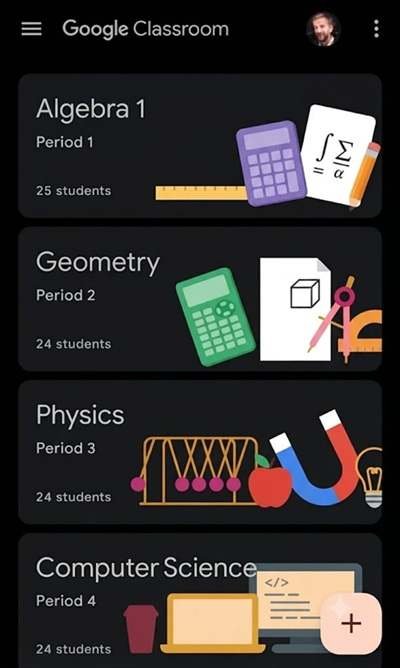
Google Classroom is an online education platform developed by Google. It helps teachers create classes, share learning materials, give assignments, review student work, and provide grades or feedback.
Students can use it to join classes, check deadlines, open class materials, communicate with teachers, and submit homework. The service also connects with Google Drive and other Google education tools.
Teachers can invite students through a class code, invitation link, or email invitation.
Google Classroom Latest Version for Android
The official Google Play listing shows Google Classroom from Google LLC with more than 100 million downloads. The listing was updated on September 4, 2026, with bug fixes and performance improvements.
Because app versions can change, I recommend checking Google Play for the current release before downloading. The official version is the safest option for regular updates and compatibility.
Google Classroom APK Download
The Classroom APK is the Android installation package for the app. However, users normally do not need to download a separate APK because the official application is available through Google Play.
Before using an APK file from another website, check:
- App name and developer
- Version information
- File source
- Android compatibility
- Requested permissions
- File security
For safety, the official Google Play version should be preferred whenever it is available.
How to Download Google Classroom APK on Android
If you are looking for the Android app, the safer download process is:
- Open the Google Play Store.
- Search for Google Classroom.
- Confirm that Google LLC is the developer.
- Check the available version and app information.
- Tap Install.
- Wait for the installation to finish.
Avoid modified or suspicious APK files that claim to provide unofficial premium features.
How to Install Google Classroom on Android
If you already have a legitimate APK file, open it from your download folder and follow Android’s installation instructions.
If Android asks for permission to install from an unknown source, only enable it when you completely trust the file and its source. After installation, open the app and sign in with the appropriate Google account.
How to Create a Google Classroom Account
Classroom uses a Google account for sign-in. After opening the app:
- Select the Google account you want to use.
- Sign in if necessary.
- Check that you are using the correct school or personal account.
- Open the Classroom dashboard.
Your school or organization may provide specific account requirements.
How to Join a Class in Google Classroom
Joining a class is simple when your teacher provides a class code.
Open the app, sign in with the correct account, tap Join class, enter the code, and tap Join. Google says class codes are six to eight characters and use letters and numbers.
You can also join through an invitation link or email invitation.
How to Create and Manage a Class
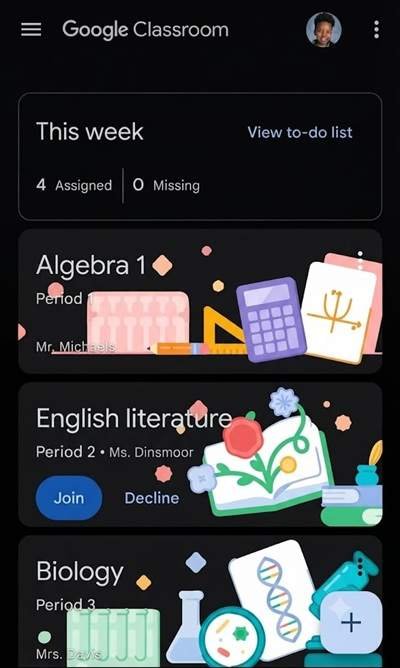
Teachers can create a classroom and organise it around a subject or course. They can invite students, publish announcements, add learning materials, and create assignments.
Teachers can also add due dates, topics, attachments, rubrics, and grading information when creating assignments.
How to Submit Assignments on Google Classroom
For students, assignment submission usually follows these steps:
- Open the class.
- Go to Classwork.
- Select the assignment.
- Read the instructions.
- Attach a file, photo, Drive item, or create a new document.
- Review your work.
- Tap Turn in.
Google also supports attaching files from Drive, links, photos, and other supported sources.
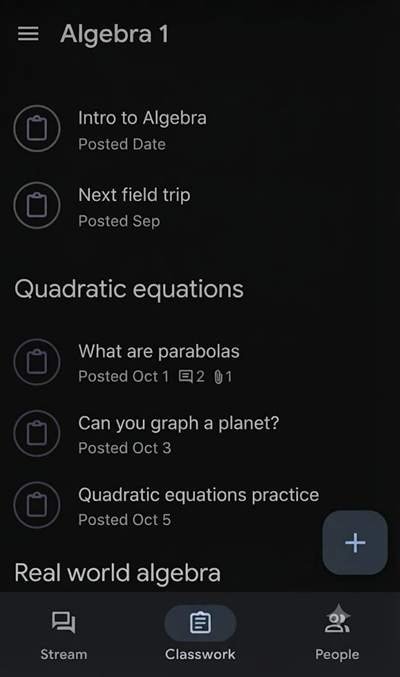
Google Classroom Features
The main features include:
- Classwork and assignment management
- Teacher announcements
- Learning materials and file sharing
- Student-teacher communication
- Grades and feedback
- Google Drive integration
- Assignment planner
- Class organisation
- Mobile access
The official listing also notes that class materials can be organised through Google Drive folders.
Google Classroom for Students
Students can use the mobile app to join classes, view assignments and deadlines, submit schoolwork, check grades, and communicate with teachers or classmates when enabled.
The Classwork section helps students find assignments, questions, and other course materials in one place.
Google Classroom for Teachers
Teachers can create classes, invite students, publish lessons, share resources, create assignments, review submissions, and provide grades or feedback.
This makes it useful for both traditional classroom teaching and remote learning.
How to Use Google Classroom Offline
Some classroom functions work without an internet connection on Android. Students can review announcements and assignments, access downloaded attachments, edit supported offline files, and manage offline files.
For offline access, files need to be downloaded while you have an internet connection. Changes and updated content can sync again when connectivity returns.
Google Classroom Notifications and Settings
Notifications help students and teachers keep track of class activity. You can manage notification preferences through the app and account settings.
If you receive too many alerts, review your Classroom notification settings and disable unnecessary notifications.
Google Classroom Security and Privacy
Google states that Classroom contains no ads and does not use student content or data for advertising purposes. Its Play Store data-safety section says data is encrypted in transit and that users can request deletion of data.
I recommend using a strong Google account password, keeping your device updated, and avoiding sharing your login details with others.
Common Google Classroom Problems and Fixes
Login problems: Make sure you are using the correct Google account.
Class code not working: Check the code carefully and confirm that it has not been changed or disabled by the teacher.
Assignment submission problems: Check your internet connection, attachment, and available storage. If an error continues, contact your teacher.
Notification or sync problems: Check notification settings, internet access, and whether the app is updated.
Google Classroom Pros and Cons
Pros
- Simple class organization
- Easy assignment submission
- Useful teacher-student communication
- Google Drive integration
- Android and iOS support
- Some offline functionality
Cons
- Requires an appropriate Google account
- Some features depend on connected Google apps
- Certain functions need internet access
- School or organization settings can affect available options
Google Classroom User Experience
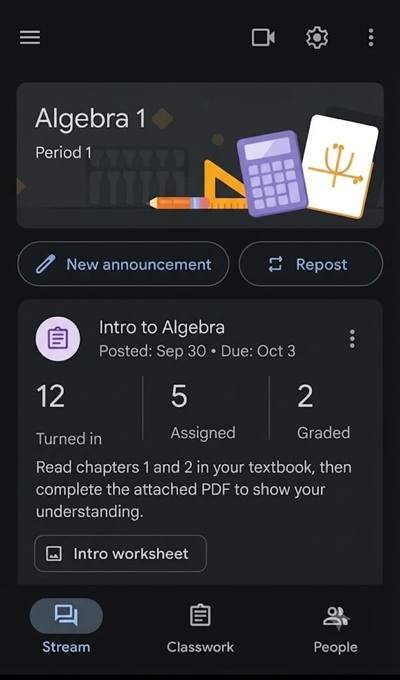
The mobile interface is designed around classes, Stream, Classwork, and People sections. This makes it relatively straightforward to find announcements, assignments, classmates, and course information.
For students, the assignment workflow is especially useful because work, attachments, deadlines, and feedback can be managed from the same platform.
Frequently Asked Questions About Google Classroom
What is Google Classroom?
It is Google’s online classroom and assignment management platform for teachers and students.
Is Google Classroom available for Android?
Yes. The official app is available for Android devices through Google Play.
How do I download Google Classroom APK?
The recommended method is to install the official app through Google Play rather than using an unknown APK source.
How do I join a class?
Sign in with the correct account, tap Join class, enter the class code, and confirm.
How do students submit assignments?
Open the assignment, attach or create the required work, and tap Turn in.
Can Google Classroom work offline?
Yes. Some functions and downloaded materials can be accessed offline on Android.
Can teachers create their own classes?
Yes. Teachers can create classes, invite students, publish materials, and create assignments.
Is Google Classroom safe to use?
The official app provides Google account and data-security features, but users should still protect their account credentials and keep their devices updated.
Conclusion
Google Classroom provides a practical way to organize digital classes, assignments, materials, communication, and feedback. Its Android app is useful for students and teachers who want to manage schoolwork from a mobile device.
For the safest Google Classroom download, I recommend using the official Google Play listing and keeping the app updated.